
LiftMaster’s MyQ technology, paired with Security+ 2.0, offers enhanced garage door control and peace of mind. This system allows remote monitoring
and operation via a mobile application, ensuring convenience and security for homeowners. Detailed instructions and support are available at LiftMaster.com.
What is LiftMaster MyQ?
LiftMaster MyQ is a smart home technology that provides secure and convenient control over your garage door, gate, and lights from anywhere with an internet connection. Utilizing the MyQ app, available for both iOS and Android devices, users can monitor the status of their door – open or closed – in real-time.
This innovative system goes beyond simple remote control; it offers features like receiving alerts when the door is opened or closed, and the ability to create schedules for automatic operation. The core of MyQ lies in its compatibility with LiftMaster’s Security+ 2.0 technology, ensuring a highly encrypted and secure connection.
Essentially, MyQ transforms your garage door opener into a connected device, integrating seamlessly into a modern smart home ecosystem. Accessing detailed instructions and troubleshooting assistance is readily available through the official LiftMaster website, myLiftMaster.com.
Security+ 2.0 Technology Overview
Security+ 2.0 represents LiftMaster’s latest advancement in garage door security, employing a rolling code system to prevent unauthorized access. Unlike older fixed-code systems, Security+ 2.0 generates a new code with each use, making it virtually impossible for someone to capture and replicate the signal.
This technology utilizes encryption to secure communication between the garage door opener, remote controls, and the MyQ system. The encryption process ensures that only authorized devices can operate the door, safeguarding against potential hacking or signal interference.
Furthermore, Security+ 2.0 is designed to be compatible with a wide range of LiftMaster accessories, providing a cohesive and secure smart home experience. Detailed information regarding the security protocols and features can be found in the comprehensive documentation available at LiftMaster.com, ensuring users understand the robust protection offered.
Benefits of Using MyQ with Your Garage Door
Integrating your LiftMaster garage door with the MyQ system unlocks a wealth of benefits, significantly enhancing convenience and security. Remote control capabilities allow you to open or close your garage door from anywhere using your smartphone, eliminating worries about forgotten closures or granting access to trusted individuals.
Real-time status monitoring provides instant notifications regarding your garage door’s position, offering peace of mind and preventing potential security breaches. Features like Alert2Close send notifications if the door is left open for a specified duration, while Timer-to-Close automatically closes the door after a set time.
MyQ also streamlines daily routines and enhances home safety, offering a connected experience. For detailed information on maximizing these benefits, and compatible accessories, visit LiftMaster.com.
Setting Up Your LiftMaster MyQ System
Begin by downloading the MyQ app and creating an account. Then, connect your garage door opener to the system, ensuring Wi-Fi compatibility for seamless control.
Downloading and Installing the MyQ App
To begin utilizing the LiftMaster MyQ system, the first step involves downloading and installing the MyQ app on your smartphone or tablet. The app is readily available for both iOS and Android devices. You can find it by searching “MyQ” in the Apple App Store or the Google Play Store.
Once located, tap the “Install” button to initiate the download process. After the download is complete, tap “Open” to launch the application. Ensure your mobile device is connected to a stable Wi-Fi network during the installation process to avoid any interruptions. The app requires certain permissions to function correctly, such as location access for geofencing features, so grant these permissions when prompted.
Following installation, you’ll be guided through a brief tutorial outlining the app’s core functionalities and features. This introductory walkthrough will help familiarize you with the interface and prepare you for account creation and device connection.
Creating a MyQ Account
After successfully installing the MyQ app, the next crucial step is creating a MyQ account. Launch the app and tap on the “Create Account” option. You will be prompted to enter a valid email address and create a secure password. Ensure your password meets the specified complexity requirements for enhanced security.
You’ll then be asked to agree to the MyQ Terms of Service and Privacy Policy. Carefully review these documents before proceeding. Following acceptance, you may need to verify your email address by clicking on a link sent to your inbox. This verification step confirms your email ownership and activates your account.
Once verified, you can log in to your new MyQ account and begin the process of connecting your LiftMaster garage door opener. A MyQ account is essential for remote control and monitoring capabilities.
Connecting Your Garage Door Opener to MyQ
To connect your LiftMaster garage door opener to the MyQ system, ensure your opener is compatible – most newer models are. Within the MyQ app, select “Add Device” and follow the on-screen instructions. The app will guide you through a process of putting your opener into pairing mode, typically involving pressing a “Learn” button on the opener itself.
The app will then search for your opener. Once detected, you’ll be prompted to name your garage door for easy identification. Successful connection requires a stable Wi-Fi connection; ensure your mobile device is within range of your router during the setup.
If the connection fails, consult WiFiHelp.LiftMaster.com for compatible router specifications and troubleshooting assistance. A successful connection unlocks remote control and monitoring features.
Wi-Fi Compatibility and Requirements
For optimal performance of your LiftMaster MyQ system, specific Wi-Fi requirements must be met. The MyQ app requires a 2.4 GHz Wi-Fi network; it does not currently support 5 GHz networks. Ensure your router is broadcasting on the 2.4 GHz band and that your mobile device is connected to it during setup and operation.
A stable internet connection is crucial for reliable remote access. Signal strength should be sufficient at the location of your garage door opener. If you experience connectivity issues, visit WiFiHelp.LiftMaster.com for a comprehensive list of compatible routers and troubleshooting tips.
Certain router settings, like firewall configurations, may interfere with the MyQ connection; consult your router’s manual for adjustments if needed.
Using the MyQ App Features
The MyQ app provides remote control, real-time status updates, and customizable alerts like Alert2Close and Timer-to-Close, enhancing convenience and security.
Remote Garage Door Control
With the MyQ app, you gain the ability to remotely control your LiftMaster garage door from virtually anywhere, offering unparalleled convenience and peace of mind. This feature allows you to open, close, and check the status of your garage door directly from your smartphone or tablet.
Ensure your mobile device is connected to a Wi-Fi network for optimal performance. The app’s intuitive interface provides a simple and straightforward experience, making operation accessible for all users. This remote access is particularly useful when you’re away from home and need to grant access to family members or delivery personnel.
Furthermore, the MyQ app’s remote control functionality integrates seamlessly with other smart home systems, expanding its capabilities and providing a truly connected home experience. Visit WiFiHelp.LiftMaster.com for compatible router specifications and assistance.
Real-Time Garage Door Status Monitoring
The MyQ app provides real-time status updates of your garage door, eliminating uncertainty about whether it’s open or closed. This feature offers a significant security benefit, allowing you to verify the door’s position from anywhere with an internet connection. You’ll receive instant notifications if the door is left open, reducing the risk of potential security breaches or accidental damage.
This constant monitoring provides peace of mind, especially when you’re away from home or simply want to ensure everything is secure. The app displays the current status clearly and concisely, making it easy to understand at a glance.
Combined with remote control capabilities, this monitoring feature creates a comprehensive system for managing your garage door’s security and accessibility. It’s a core component of the MyQ system’s value proposition.
Setting Up Alerts and Notifications (Alert2Close)
The MyQ app’s Alert2Close feature sends timely notifications to your smartphone when your garage door has been left open for a specified duration. This proactive alert system significantly enhances your home’s security by reminding you to close the door, preventing potential intrusions or damage from weather conditions. Customization options allow you to adjust the alert timeframe to suit your preferences.
Setting up these alerts is straightforward within the MyQ app’s settings menu. You can choose to receive push notifications, ensuring immediate awareness. This feature is particularly useful for busy individuals or those who frequently forget to check the garage door.
Alert2Close provides an extra layer of security and peace of mind, making it a valuable tool for any MyQ user.
Creating Schedules and Timers (Timer-to-Close)
The MyQ app allows you to establish automated schedules and timers for your garage door, offering enhanced convenience and security. The “Timer-to-Close” function automatically closes your garage door after a pre-set period, eliminating the worry of accidentally leaving it open. This feature is ideal for individuals with busy lifestyles or those seeking an added layer of protection.
Within the MyQ app, you can easily create customized schedules based on specific days and times. This functionality is useful for managing access for family members or service providers. Setting a timer ensures the door closes even if you forget, bolstering your home’s security.
These scheduling options provide a flexible and reliable way to control your garage door access.
MyQ Remote Control and Door Control Operation
MyQ remote controls and wall-mounted controls seamlessly integrate with the system, offering alternative methods for garage door operation and enhanced user convenience.
Programming MyQ Remote Controls
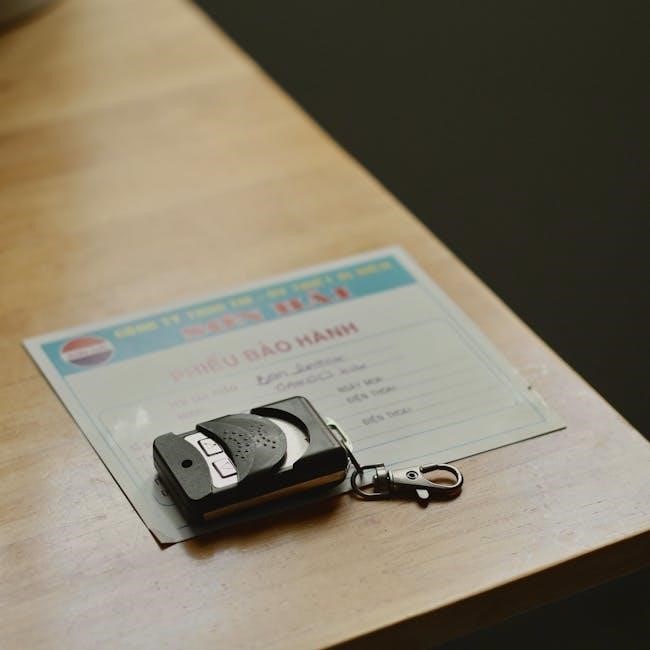
Programming your LiftMaster MyQ remote controls is a straightforward process, establishing a secure connection to your garage door opener. Begin by ensuring your garage door opener is compatible with MyQ technology and that the system is powered on. Locate the “Learn” button on your garage door opener motor unit – it’s typically yellow or orange. Press and release this button, initiating a 30-second learning window.
Next, press and hold the desired button on your MyQ remote control until the garage door opener motor unit lights blink, confirming successful programming. Repeat this process for each additional remote control you wish to pair with the system. If programming fails, ensure you are within range and that no other devices are interfering. Remember, erasing all devices, including MyQ accessories, requires a specific procedure detailed on LiftMaster.com.
Using the Wall-Mounted Door Control
The wall-mounted door control serves as a traditional method for operating your LiftMaster garage door, functioning independently of the MyQ system. Pressing the button on the wall control will open or close the door, overriding any scheduled timers or remote commands. This is particularly useful during power outages, as it bypasses the electronic components.
Ensure the wall control is securely mounted and easily accessible. If the wall control becomes unresponsive, check the wiring connections and ensure the garage door opener has power. Remember that the emergency release handle, when pulled, disengages the trolley, allowing manual operation. The wall control remains functional even with the emergency release engaged, providing a backup operational method. For detailed instructions, refer to LiftMaster.com.
Wireless Keyless Entry System Integration
LiftMaster’s wireless keyless entry systems seamlessly integrate with the MyQ platform, offering an alternative access method to your garage. These systems allow authorized users to open the door using a personal PIN code, eliminating the need for physical keys or remote controls. Programming the keyless entry system is typically done through the MyQ app or directly on the unit itself, following the manufacturer’s instructions.
To erase all devices, including MyQ-enabled accessories, a specific procedure must be followed on the keyless entry system. This ensures security if a code is compromised. Regularly changing your PIN code is also recommended. Refer to LiftMaster.com for detailed programming and troubleshooting guides specific to your keyless entry model, ensuring optimal functionality and security.
Troubleshooting Common MyQ Issues
Common issues include connectivity problems, app responsiveness, and garage door connection failures. Visit WiFiHelp.LiftMaster.com for router compatibility and troubleshooting assistance.
Connectivity Problems
Experiencing connectivity issues with your LiftMaster MyQ system can be frustrating, but several troubleshooting steps can resolve the problem. First, ensure your mobile device is connected to a stable Wi-Fi network. Check your router’s compatibility at WiFiHelp.LiftMaster.com, as certain routers may interfere with the MyQ signal.
Verify that your garage door opener is within range of your Wi-Fi network. Walls and other obstructions can weaken the signal. Try moving closer to the opener during the setup process. If the issue persists, restart both your router and the MyQ-connected device. Confirm that the MyQ app has the necessary permissions enabled on your smartphone.
Occasionally, a simple reset of the MyQ device can re-establish the connection. If problems continue, consult the LiftMaster support website for further assistance and detailed troubleshooting guides tailored to your specific model.
App Not Responding
If the MyQ app is unresponsive, begin by force-closing the application on your smartphone and relaunching it. This often resolves temporary software glitches. Ensure you are running the latest version of the MyQ app; outdated versions can experience compatibility issues. Check the app store for available updates.
Clear the app’s cache and data within your phone’s settings. This removes temporary files that may be causing conflicts. Be aware this may require you to log back into your MyQ account. If the problem persists, try uninstalling and reinstalling the app. This ensures a fresh installation with all current files.
Confirm your smartphone’s operating system is up-to-date, as compatibility issues can arise with older OS versions. If none of these steps work, consult the LiftMaster support website for further assistance and potential known issues.
Garage Door Not Connecting
When your garage door fails to connect to the MyQ system, first verify your Wi-Fi network is functioning correctly and that your smartphone is connected. Ensure the garage door opener is within range of your Wi-Fi router; signal strength can be a factor. Consult WiFiHelp.LiftMaster.com for compatible router specifications and troubleshooting assistance.
Confirm the garage door opener’s LED indicator is illuminated and displaying the correct color, as indicated in the MyQ manual. A flashing or incorrect color suggests a connection issue. Try power-cycling the garage door opener by unplugging it for 30 seconds, then plugging it back in.
Within the MyQ app, attempt to reconnect the garage door opener following the initial setup instructions. If problems continue, a factory reset of the MyQ system might be necessary, but remember this will erase all settings.

Resetting MyQ Devices
Resetting your MyQ devices can resolve persistent connectivity or functionality issues. Before proceeding, understand that a reset will erase all current settings, including schedules and user access. To erase all devices – including those enabled with MyQ – consult LiftMaster.com for detailed instructions specific to your model.
For a basic reset, begin by removing the device from your MyQ account within the app. Then, power cycle the garage door opener by disconnecting it from the power source for approximately 30 seconds before reconnecting. This often resolves minor glitches.
If issues persist, a factory reset might be required. This process varies by model; refer to your LiftMaster PREMIUM Series Garage Door Opener manual, downloadable from LiftMaster.com, for precise steps. Remember to re-pair all remotes and keyless entries after a full reset.
Security Features and Considerations
LiftMaster prioritizes security with Security+ 2.0 encryption, protecting against unauthorized access. Account protection and understanding the emergency release are crucial for safe operation.
Security+ 2.0 Encryption
Security+ 2.0 represents a significant advancement in garage door opener security, utilizing rolling code technology to prevent unauthorized access. This system generates a new security code with each use, rendering previously intercepted codes useless to potential intruders. Unlike older, fixed-code systems, Security+ 2.0 dynamically changes the code, creating a virtually impenetrable barrier against hacking and code grabbing.
The encryption process involves a complex algorithm that ensures secure communication between the garage door opener, remote controls, and the MyQ system. This robust encryption safeguards your home from potential security breaches, offering a higher level of protection compared to standard garage door security measures. Regularly updating your MyQ firmware ensures you benefit from the latest security enhancements and protections offered by Security+ 2.0.
LiftMaster continually invests in improving its security protocols to stay ahead of evolving threats, providing homeowners with confidence and peace of mind.
Protecting Your MyQ Account
Maintaining the security of your MyQ account is crucial for safeguarding your home. Employ a strong, unique password that combines uppercase and lowercase letters, numbers, and symbols. Avoid using easily guessable information like birthdays or pet names. Enable two-factor authentication (2FA) whenever possible, adding an extra layer of security beyond just your password.
Regularly review your account activity for any suspicious logins or unauthorized changes. Be cautious of phishing emails or messages requesting your MyQ credentials; LiftMaster will never ask for your password via email. Keep your registered email address current to ensure you receive important security alerts and notifications.
If you suspect your account has been compromised, immediately change your password and contact LiftMaster support for assistance. Remember to delete your MyQ account via myLiftMaster.com if you no longer use the service.
Emergency Release Handle Operation
The emergency release handle allows manual operation of your garage door during power outages or system malfunctions. To activate, pull the handle down and back towards the garage door opener. This disengages the trolley, enabling you to raise and lower the door manually. Remember that when the handle is engaged, the automatic features are disabled.
Exercise caution when manually operating the door, ensuring a clear path and avoiding pinch points. After restoring power or resolving the issue, always re-engage the emergency release by pulling the handle forward until it clicks back into place. This reconnects the trolley to the opener, restoring automatic functionality.
Verify proper operation by testing the door with the wall control and MyQ app. A disengaged trolley prevents the door from closing automatically, so re-engagement is vital for security.
Deleting Your MyQ Account (myLiftMaster.com)
If you no longer wish to use the MyQ system, you can permanently delete your account through the myLiftMaster.com website. This process removes your personal information and disconnects all associated devices, including garage door openers and accessories. Before proceeding, ensure you understand that this action is irreversible and all settings will be lost.
To begin, navigate to myLiftMaster.com and log in to your account. Locate the account settings or profile section, where you’ll find the option to delete your account. Follow the on-screen prompts, which may require verification of your identity.
Please note that deleting your account will also erase all remote control and keyless entry device pairings. It’s crucial to understand these implications before confirming the deletion.
Advanced MyQ Settings
Explore advanced features like managing multiple users, integrating with smart home platforms, updating firmware, and performing a complete system factory reset for optimal performance.
Managing Multiple Users
The MyQ app allows for convenient management of multiple users, granting controlled access to your garage door. You can invite family members or trusted individuals, assigning specific permissions to each user. This ensures that only authorized personnel can operate the garage door remotely or through the app.
To add a user, navigate to the “People” section within the MyQ app settings. From there, you can send invitations via email or text message. Each user will need to create their own MyQ account to activate their access. Administrators retain the ability to modify or revoke access at any time, providing a robust security layer.
Furthermore, you can customize notification preferences for each user, ensuring everyone stays informed about garage door activity. This feature enhances security and provides peace of mind knowing who is accessing your property.
Integrating with Smart Home Systems
LiftMaster’s MyQ technology seamlessly integrates with various popular smart home ecosystems, expanding your control and automation options. Compatibility includes systems like Google Assistant, Amazon Alexa, and IFTTT, allowing voice control and customized routines. This integration enables you to open or close your garage door with simple voice commands or trigger actions based on specific events.
To connect MyQ to your preferred smart home platform, navigate to the “Integrations” section within the MyQ app settings. Follow the on-screen instructions to link your MyQ account and authorize access. Once connected, you can create custom scenes and automations, such as automatically closing the garage door at a specific time or when you leave home.
This interoperability enhances convenience and security, creating a truly connected smart home experience. Explore the possibilities and tailor your setup to fit your lifestyle.
Updating MyQ Firmware
Maintaining up-to-date firmware on your MyQ system is crucial for optimal performance, security enhancements, and access to the latest features. The MyQ app automatically checks for available updates periodically, notifying you when a new version is ready for installation. It’s recommended to install updates promptly to benefit from these improvements.
To manually check for updates, navigate to the “Settings” menu within the MyQ app and select “Firmware Update.” The app will scan for available versions and guide you through the installation process. Ensure your MyQ hub remains powered on and connected to a stable Wi-Fi network during the update.
The update process typically takes several minutes; avoid interrupting it. Regular firmware updates safeguard your system against potential vulnerabilities and ensure continued compatibility with smart home integrations.
Factory Resetting Your MyQ System
A factory reset restores your MyQ system to its original settings, erasing all personalized configurations, user accounts, and connected devices. This is typically reserved for troubleshooting severe issues or preparing the system for a new owner. Before proceeding, understand that this action is irreversible and requires re-setup.
To initiate a factory reset, locate the reset button on your MyQ hub – its location varies by model, so consult your specific manual at LiftMaster.com for guidance. Press and hold the reset button for approximately 10-15 seconds until the indicator light begins to flash rapidly.
Once the reset is complete, the hub will restart and return to its factory default state. You’ll then need to re-download the MyQ app, create a new account, and re-connect your garage door opener and any other accessories.